SimSinter Installation Guide
Prerequisites
SimSinter 3.x has been tested with Windows 10, Windows 11, Windows Server 2019 and Windows Server 2022.
To get any use out of SimSinter you will also need at least one simulator to use it with. SimSinter has been tested with:
Aspen Plus, version 12 or newer
Aspen Custom Modeler (ACM), version 12 or newer
Microsoft Excel, 2021 or newer
Basic Installation
Third Party Software Installation
In order to run a simulation, the correct simulator is also required. SimSinter may use Aspen Plus, Aspen Custom Modeler, GPROMS, or Microsoft Excel. Please install the appropriate simulator by following the simulator vendor provided documentation.
Product Installation
To install SimSinter:
Download SimSinterInstaller.msi from https://github.com/CCSI-Toolset/SimSinter/releases
Run SimSinterInstaller.msi
Click Next
Accept the terms of the License agreement
Click either the “Typical” or “Complete” button; either will install all of SimSinter. The Custom button may be used to not install certain features.
Click the Install button.
Give permission for SimSinter to install, enter administrator login information if necessary.
Click “Finish” to complete the installation.
SimSinter should now be installed and entered into the Windows registry. It should now be accessible by either Microsoft Excel or the command line tools.
Installation Test
Three tests are included with the SimSinter installation that will allow testing that SimSinter has installed correctly. There is one test for each of the three supported simulators. The tests demonstrate running SimSinter from Microsoft Excel, so to run them you must have Microsoft Excel installed.
To test, please choose the appropriate simulator below and follow the instructions.
Opening a Simulation with SinterConfigGUI
This is a simple test to make sure that SimSinter is installed correctly, and can correctly open your simulation and simulator.
Choose a simulation to open, and make sure you have the correct simulator installed. For example, I will be using the Aspen Custom Modeler simulation included with the SimSinter install. So I should make sure that I have both Aspen Custom Modeler installed, and SimSinter, as shown in Figure 1.
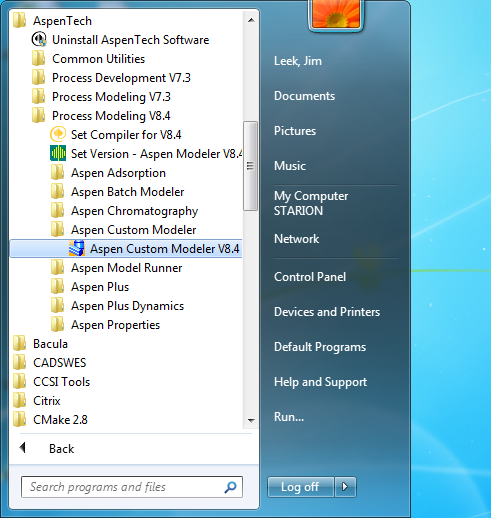
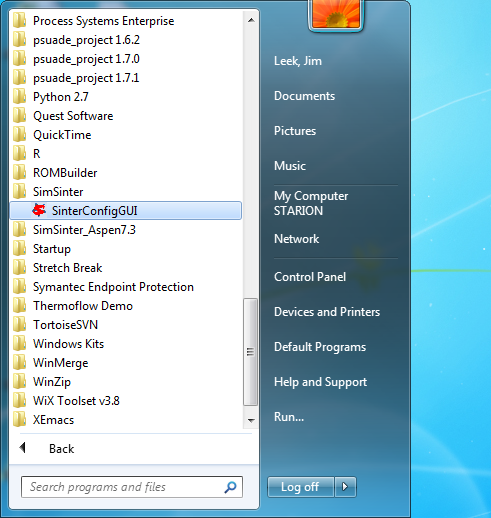
Figure 1
Open SinterConfigGUI by selecting it from the start menu, as in Figure 1.
Initially the SimSinter Configuration File Builder splash screen displays, as shown in Figure 2. Either click the splash screen to proceed or wait 10 seconds for the screen to close automatically.

Figure 2: SimSinter Splash Screen
- The SinterConfigGUI Open Simulation window displays as shown in Figure 3. Click “Browse” to select the file to open and then click “Open File and Configure Variables” to open the file. The user can either open a fresh ACM simulation (.acmf file) or an existing Sinter configuration file. In these instructions, a fresh simulation is opened.It may take a few minutes after clicking the button to SinterConfigGUI to move on. It must open your simulator, so you must expect it to take at least as long as your simulator normally takes to open. For Aspen products that use a networked license server, this may take as long as a few minutes. During that SinterConfigGUI will remain on the Open File Page, but the “Attempting to Open Aspen” message will appear at the bottom of the window.

Figure 3: SinterConfigGUI Open Simulation Window
Click browse and select your file. I will be opening the ACM demonstration file included with SimSinter in C:\SimSinterFiles\ACM_Install_Test, as in Figure 4.

Figure 4: Selecting the simulation file to open
Click “Open File and Configure Variables”

Figure 5: Clicking Open File button
It may take a few minutes after clicking the button to SinterConfigGUI to move on. It must open your simulator, so you must expect it to take at least as long as your simulator normally takes to open. For Aspen products that use a networked license server, this may take as long as a few minutes. During that time SinterConfigGUI will remain on the Open Simulation window, but the “Attempting to Open Aspen” message will appear at the bottom of the window.
- The SinterConfigGUI Simulation Meta-Data window displays as shown in Figure 6.Also, the Aspen Custom Modeler has started up in the background. This is so the user can observe things about the simulation in question as they work on the configuration fileIf you see an error instead, please attempt to debug the issue, or contact CCSI support at ccsi-support@acceleratecarboncapture.org

Figure 6: Meta-Data window
If you see the window in Figure 6, SimSinter is working properly and can properly open simulators. If you wish to continue this tutorial, and configure the simulation, please see the tutorial section of the SimSinter User Manual. It includes sections on configuring simulations for Aspen Custom Modeler, Aspen Plus, and Microsoft Excel.