Usage Information
The gPROMS and SimSinter interaction is quite complex, and there are a number of details, tips, and tricks that do not cleanly fit into another section. Those issues and tips are listed in this section.
gPROMS Input Variable Assignment Types
SimSinter allows three variable types, and vectors of those three types. This section describes the details of using them with gPROMS. All input variables come from a FOREIGN_OBJECT. For this example the FOREIGN_OBJECT is named “FO.”
Real
Reals may be declared as either PARAMETERS or VARIABLES. VARIABLES are the only type that may be an output variable, so only reals may be output to SimSinter. All user defined types are actually of type real. The Variable Type just includes information about the units of the value, its default, and its minimum and maximum values. All of the following are valid declarations of real scalars or arrays:
PARAMETER
Alpha AS REAL DEFAULT 0.8
FliudMass AS Mass DEFAULT 1
AlphaArray AS ARRAY(5) OF REAL
MassArray AS ARRAY(5) OF Mass
VARIABLE
Alpha AS REAL DEFAULT 0.8
FliudMass AS Mass DEFAULT 1
AlphaArray AS ARRAY(5) OF REAL
MassArray AS ARRAY(5) OF Mass
Reals can have their values set in either the “SET,” “ASSIGN,” or “INITIAL” section, depending on if they are PARMETERS or VARIABLES. For SimSinter to interpret a scalar integer as an input variable, in must not be in a for loop, and must be of the form:
Scalar Real: FO.Real__<InputName>()
Array Reals must be in a for loop, and be of the form (the “1” and the loop index are required):
Array Real: FO.Real1__<InputName>(<Loop Index>);
Example:
SET
T101.Alpha := FO.Real__AlphaFO();
ASSIGN
T101.FlowIn := FO.Real__FlowInFO();
FOR ii := 1 TO 5 DO
T101.ArrayMass(ii) := FO.Real1__Mass(ii);
end
INITIAL
T101.Height = FO.Real__HeightFO() ;
Integer
Integers must be declared in the “PARAMETER” section in gPROMS. They therefore cannot have a user defined variable type, and can only be input variables. Integers cannot be output variables. The DEFAULT shown below is optional.
PARAMETER
SingleInt AS INTEGER DEFAULT 11
ArrayInt AS ARRAY(2) OF INTEGER DEFAULT 12
Integers must have their values set in the “SET” section. For SimSinter to interpret a scalar integer as an input variable, in must not be in a for loop, and must be of the form:
Scalar Integer: FO.Integer__<InputName>()
Array Integers must be in a for loop, and be of the form (the “1” and the loop index are required):
Array Integer: FO.Integer1__<InputName>(<Loop Index>);
Example:
SET
T101.SingleInt := FO.Integer__SingleInt();
FOR ii := 1 TO 2 DO
T101.ArrayInt(ii) := FO.Integer1__ArrayInt(ii);
End
String/Selectors
gPROMS does not have proper string variables, gPROMS uses selectors, which use strings like enumerations. These are passed through SimSinter as strings. But if an invalid value is passed as a string, gPROMS will throw an error.
Selectors must be declared in the “SELECTOR” section in gPROMS. They therefore cannot have a user defined variable type, and can only be input variables. Selectors cannot be output variables. The DEFAULT shown below is optional.
SELECTOR
singleSelector AS ( apple, pear, banana ) DEFAULT apple
arraySelector AS ARRAY (3) OF ( red, yellow, blue ) DEFAULT red
Selectors must have their values set in the “INITIALSELECTOR” section. For SimSinter to interpret a single selector as an input variable, in must not be in a for loop, and must be of the form:
Single Selector: FO.String__<InputName>()
Array of Selectors must be in a for loop, and be of the form (the “1” and the loop index are required):
Array Selector: FO.String1__<InputName>(<Loop Index>);
Example:
INITIALSELECTOR
T101.singleSelector := FO.String__singleSelector();
FOR ii := 1 TO 3 DO
T101.arraySelector(ii) := FO.String1__arraySelector(ii);
END
Table : Foreign Object Method Types Reference Table
Type |
Foreign Object Method |
|---|---|
Scalar Real |
FO.Real__<InputName>() |
Array Real |
FO.Real1__<InputName>(<Loop Index>) |
Scalar Integer |
FO.Integer__<InputName>() |
Array Integer |
FO.Integer1__<InputName>(<Loop Index>) |
Scalar Selector |
FO.String__<InputName>() |
Array Selector |
FO.String1__<InputName>(<Loop Index>) |
Parenthesis at the End of Input Variable Reads in gPROMS
All the Foreign Object methods that are used to import values from SimSinter have parenthesis at the end. In the case of arrays, those parenthesis contain the loop index, but in scalars they are empty. It is easy to forgot to include the parenthesis in the scalar version, so the user must be careful. gPROMS will not catch the mistake, and SimSinter will misinterpret the reference in that case. SimSinter will call the input variable something like “Real__<name>” which gPROMS will be unable to interpret.
SimSinter Cannot Parse Models or Variable Types from Add-On Libraries such as PML
When SinterConfigGUI configures a gPROMS simulation, it parses the .gPJ file to discover what variables are available for reading and writing. Unfortunately, types from add-on libraries such as PML and gCCS are not included in the .gPJ file by default. If the user wants to get or set a variable that is either, part-of an add on model, or has a type from an add-on variable type, the user has two options.
Copy the necessary model or variable type from the library into the user’s project. This is only possible with open libraries such as PML. If the models and variable types are included in the .gPJ file, then SimSinter can parse them and the user can use them as input or output variables.
Put a connecting variables into the process. The user may define a new variable in the process that is equal to the variable in the library model, or that has a user defined type. Then that variable may be used as an input or output variable that just passes the variable to the actual target.
This method is most useful for use with encrypted libraries, which the user does not have access to the internals of, and SimSinter cannot parse. (e.g. gCCS)
Input Variable Tutorial:
First make a parameter of the correct type for each of the three variables. (See Figure 38: Creating and Setting the connecting parameters)
- Next set the three parameters with values from Foreign Object.
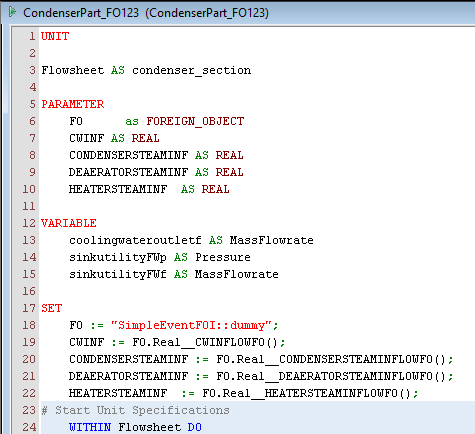
Figure : Creating and Setting the connecting parameters
Finally, assign the variables in the condenser in the ASSIGN section. (Figure Figure 39: Assigning the values of the connecting parameters to the library condenser variables.)
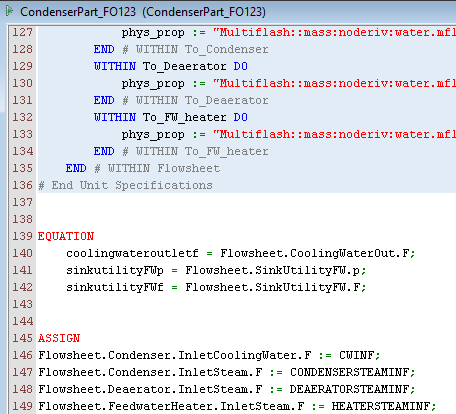
Figure : Assigning the values of the connecting parameters to the library condenser variables.
Output Variable Tutorial:
We have three output variables we want to get from our simulation, but they are inside the gCCS library, which can’t be accessed by SimSinter. The are: Flowsheet.ReheatOut.F, Flowsheet.HPSteam.p, and Flowsheet.HPSteam.T.
First declare three variables of the correct types that will be used as the output variables. (Note, these variable types CANNOT come from the encrypted library, you may need to define your own.) See Figure 40: Declaing output connecting variables.
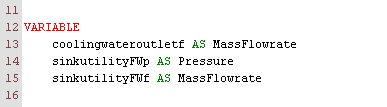
Figure : Declaing output connecting variables
Finally set the connecting variables equal to the desired library output variables in the EQUATION section. See Figure 41: Connecting the output variables.

Figure : Connecting the output variables
Solution Parameters gPLOT is REQUIRED in the Process
If a process is run from gO:Run_XML without gPLOT enabled, then all the values returned from the simulation will be ‘0’. In order words, to get any output variable with SimSinter, your gPROMS process MUST have gPLOT enabled in the SOLUTIONPARAMETERS section. See Figure 42.

Figure : SOLUTIONPARAMETERS gPLOT := ON is required
SimSinter Cannot use Multi-Dimensional Arrays a s Inputs or Outputs
Variable and Parameter Defaults Defined in gPROMS
When a variable or parameter is declared in gPROMS, it may be declared with a default. Also, variable types often include a default. SinterConfigGUI does its best to read those defaults and import them into the SinterConfigGUI as input variable defaults. However, gPROMS allows default to be defined in reference to other variables or functions. SimSinter cannot interpret variable or function values, so those defaults are skipped, and set to “0.” So:
X pi AS REAL DEFAULT 2*ACOS(0)
O pi AS REAL DEFAULT 3.1415926
gO:Run_XML License Required
SimSinter runs gPROMS simulations with a tool that is installed with ModelBuilder named “gO:Run_XML.” However, having a license for ModelBuilder does imply a license for gO:Run_XML is also available. In ModelBuilder 4.0.0 gO:Run_XML requires both gSIM_7 and gSRE_7 licenses, but as of 4.1.0, that has changed. Please confirm with your gPROMS sales representative that you have the correct licenses to run gO:Run_XML.
Simulations are Configured with .gPJ Files, but Run with .gENCRYPT
SimSinter requires two different representations of a gPROMS simulation for the two different phases SimSinter goes through.
The configuration phase of SimSinter, performed via SinterConfigGUI, requires the .gPJ file. The .gPJ file is not encrypted, so SimSinter, or anyone else, can read it and discover things about the model. If the model is secret, do not distribute the .gPJ file. The .gPJ file is only required for simulation configuration, so if the model is secret, the user should perform the SimSinter configuration themselves.
The run phase of SimSinter, performed via Turbine or ConsoleSinter, requires a .gENCRYPT file, exported from the project (not the process). This is because the PSE tool, gO:Run_XML, requires an encrypted file so that developers can distribute secret models safely to users. SimSinter cannot run a simulation from a .gPJ file.
The Name of the gENCRYPT File is Based on the Project File Name
When exporting a .gENCRYPT file, ModelBuilder will automatically give the .gENCRYPT file the name “<Project Name>.gENCRYPT,” just as the .gPJ file is named “<Project Name>.gPJ.” It is recommended that the user does not change the name of the .gENCRYPT file. If the user changes the file name, the user will have to edit the SinterConfig .json file as well to update it, as there is no way to change the name in SinterConfigGUI.
If the user decides to change the name of either the .gPJ or .gENCRYPT files, those entries may be found in the SinterConfigFile under “model” for the .gENCRYPT file, and “simulationDescriptionFile” for the .gPJ file.
“model”: “<ProjectName>.gENCRYPT”,
“simulationDescriptionFile”: “<ProjectName>.gPJ”,
Debugging
How to Debug by Yourself
Most issues with running gPROMS under SimSinter are related to issues with gO:Run_XML. So it is often helpful to run gO:Run_XML by itself, without SimSinter. This often provides some useful output the user otherwise wouldn’t see from SimSinter.
- To run gO:Run_XML, open a windows command prompt by opening the start menu, and typing “cmd”, and hitting ‘enter.’
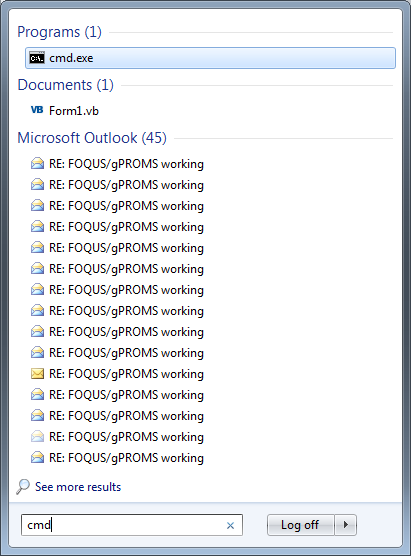
Figure : Launching a command prompt
- In the command prompt, change directory to your simulation. Type “cd <directory name>” and hit ‘enter.’In this case, we will use the demonstration simulation installed by SimSinter in c:\SimSinterFiles\gPROMS_Test
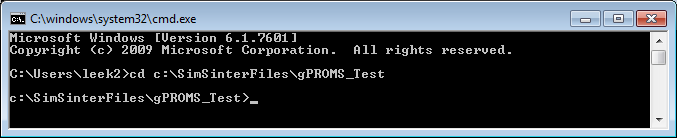
Figure : Change Directory to the simulation directory
- Now type ‘dir’ and press enter. This will list the files in the directory. If you have run sinter on this simulation before, even if it failed, there should be a sinterInput.xml file. That is the input file to gO:Run_XML.
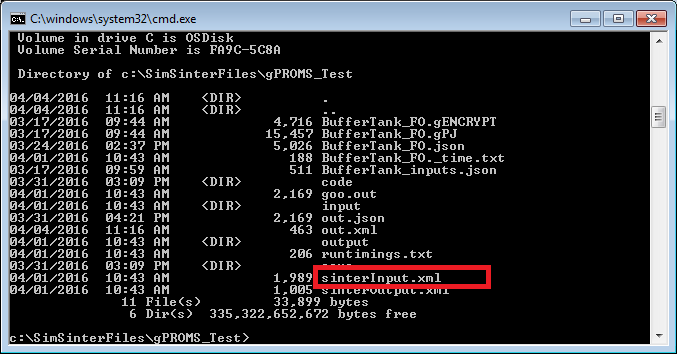
Figure : Checking for the sinterInput.xml file
If the sinterInput.xml file is there, then we can try running gO:Run_XML on it. There are three possible methods for running it:
- The simpliest method is to allow windows to find it itself via the PATH variable. However, this relies on the user have added gPROMS to the path at installation time, and multiple versions of gPROMS being installed on the machine may make it difficult to figure out which one is actually being run. But this is the command:gO:Run_XML.exe sinterInput.xml out.xml
- SimSinter uses the GPROMSHOME environment variable to locate gO:Run_XML, so if you want to be sure to run that same version as SimSinter, use this command (include the quotes):“%GPROMSHOME%\bin\gO:Run_XML” sinterInput.xml out.xml
- If you want to run a particular version of gO:Run_XML, you will have to specify the whole path. Which will be something like this (include the quotes):“C:\Program Files\PSE\gPROMS-core_4.2.0.54965\bin\gO:Run_XML” sinterInput.xml out.xml
After running gO:Run_XML, you should have some useful output that will allow you to debug the error. Please see the next section for more details.
Known Issues
License issue, sim doesn’t run
By far the most common issues we have seen with running gPROMS have been licensing issues. This is because the ModelBuilder license and the gO:Run_XML license are different licenses, so just because you have the ModelBuilder license, doesn’t mean you can run gO:Run_XML. To add to the confusion, as of ModelBuilder 4.1, PSE has added a new licensing scheme, so either of two licenses will allow the user to run gO:Run_XML: gSRE_7, or 9230_GPROMS_ENCRYPTED. gSRE_7 is the old license type, and 9230_GPROMS_ENCRYPTED is the new one.
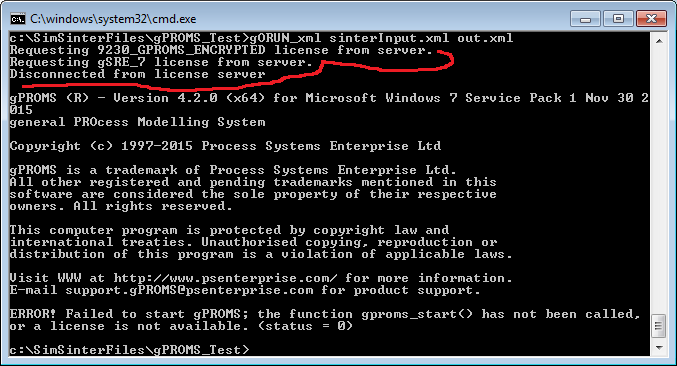
Figure : No valid gO:Run_XML license
ERROR: “gPROMS executable gO:Run_XML.exe could not be found”
This error should be rare, and only occur if something has gone wrong with gPROMS installation. SimSinter looks for gO:Run_XML both in %GPROMSHOME%\bin, and in the %PATH% environment variable. This error only appears if gO:Run_XML can’t be found in either.
In that case, please ensure gPROMS 4.0.0 is installed.
If so, open a Windows Command line and type “echo %GPROMSHOME%” make sure it looks reasonable.
If so, please contact ccsi-support for more help.
goORUN_xml produces “Unable to obtain license from server” but runs the simulation
With version of gPROMS 4.1 or newer, when running gO:Run_XML, it may complain about “Unable to obtain license from server,” but then run the simulation anyway. This is due to the new licensing scheme adopted as of version 4.1.0. It is not actually a problem. If the simulation runs, you have a license, but if you don’t have the NEW style of license, gO:Run_XML outputs a lot of useless warnings, as seen below. Just ignore it.
Example text of license confusion:
Requesting 9230_GPROMS_ENCRYPTED license from server.
Unable to obtain license from server.
Failed to get licence: License server system does not support this feature.
Feature: 9230_GPROMS_ENCRYPTED
License path: @flex1.acceleratecarboncapture.org;C:\Program Files\PSE\gPROMS-core_4.1.0.54941\licenses\*.lic;license.da
t;*.lic;
…….. Trimmed for space ……
Requesting gSRE_7 license from server.
License granted by server(s) flex1.acceleratecarboncapture.org.
…….. Trimmed for space ……
Requesting 9230_SIM license from server.
Unable to obtain license from server.
Failed to get licence: License server system does not support this feature.
Feature: 9230_SIM
…….. Trimmed for space ……
Requesting gSIM_7 license from server.
License granted by server(s) flex1.acceleratecarboncapture.org.
Loaded “gPLOT.dll”.
Execution of SimulateTank_sinter completed successfully.
Simulation took 0 seconds.
Total CPU time: 0.140s (56% system time)
Returning gSIM_7 license to server.
License returned to server.
Returning gSRE_7 license to server.
License returned to server.
Disconnected from license server
The Simulation seems to have Succeeded, but all the Output Varaibles are ‘0’
This can be difficult to debug because gO:Run_XML does not throw any errors if non-existant output variables are requested, it just returns ‘0’ for them. So there are a couple of possibilities:
Check that the .gENCRYT file and .gPJ file you built the Sinter Configuration from match. It’s easy to forget to generate a new .gENCRYPT after updating the .gPJ.
Check that the output variable names and paths are correct in sinterInput.xml. In the Sinter Configuration file, the output variable path will start with the process name (e.g. processname.unit.variablename), but in sinterInput.xml the report variable will NOT start with the processname. (e.g unit.variablename.)
Check that your gPROMS process includes gPLOT := ON in the SOLUTIONPARAMETERS section. See Figure 42: SOLUTIONPARAMETERS gPLOT := ON is required